


How to Turn Off a Proximity Sensor
2025-07-14
How to Turn Off a Proximity Sensor?
Proximity sensors are small but powerful components in devices like smartphones, tablets, and even some laptops. They detect when an object (like your face during a call) is nearby, triggering actions such as dimming the screen or pausing audio. While useful, there are times you might want to disable them—for example, if the sensor is glitchy and keeps turning off your screen unnecessarily. This guide explains how to turn off a proximity sensor across different devices, step by step.
What Is a Proximity Sensor?
Before diving into disabling it, let’s clarify what a proximity sensor does. Found near the top of most smartphones (usually next to the front camera), it uses infrared light to detect distance. When you hold a phone to your ear, the sensor detects your face and turns off the screen to prevent accidental touches (like hanging up mid-call). In other devices, it might pause music when a hand hovers over a speaker or lock a laptop lid when closed.
While handy, issues like dust buildup or software glitches can make the sensor overreact—for example, dimming the screen when nothing is near. In such cases, turning it off temporarily or permanently can solve the problem.
How to Turn Off a Proximity Sensor on Smartphones
Smartphones are the most common devices with proximity sensors. Methods vary by operating system, so we’ll break it down by iOS and Android.
Turning Off the Proximity Sensor on iOS (iPhone)
Apple iPhones don’t have a direct “off” switch for the proximity sensor in settings, as it’s tied to core features like calling. However, you can disable its functionality using workarounds:
1. Use Guided Access
Guided Access limits your iPhone to a single app, and you can disable sensor access for that session:
- Open Settings > Accessibility > Guided Access.
- Toggle it on, then open the app where you want to disable the sensor (e.g., Phone).
- Triple-click the side button (or Home button on older models) to start Guided Access.
- Tap Options > Toggle off Proximity Sensor.
- Tap Start to confirm. To exit, triple-click again and enter your passcode.
2. Disable During Calls (Temporary)
If the sensor acts up during calls, you can keep the screen on manually:
- During a call, press the Power button once to wake the screen (it won’t end the call).
- The screen will stay on until the call ends, overriding the sensor.

Turning Off the Proximity Sensor on Android
Most Android devices let you disable the proximity sensor directly in settings, though steps vary by brand (e.g., Samsung, Google Pixel, Xiaomi):
1. Through Display Settings
- Open Settings > Tap Display (or Display & Brightness).
- Look for Proximity Sensor or Prevent Accidental Touch (names vary).
- Toggle off the option (it may be labeled “Turn off screen during calls” or “Proximity detection”).
2. Via Call Settings
- Open the Phone app > Tap the three-dot menu > Settings.
- Select Calls > Look for Proximity Sensor or Screen off during calls.
- Disable the toggle to keep the screen on during calls.
3. Using Developer Options (Advanced)
- For deeper control, enable Developer Options first: Go to Settings > About Phone > Tap Build Number 7 times.
- Return to Settings > System > Developer Options.
- Scroll to Hardware Accelerated Rendering > Look for Disable Proximity Sensor (not all devices have this).
- Toggle it on to disable the sensor system-wide.
Turning Off Proximity Sensors on Other Devices
Proximity sensors aren’t limited to phones. Here’s how to disable them on other gadgets:
Laptops and Tablets
- Windows Laptops: Some models (e.g., Lenovo ThinkPads) use proximity sensors to lock the screen when a hand is near the webcam. To disable, go to Device Manager > Sensors > Right-click Proximity Sensor > Disable Device.
- iPads: Similar to iPhones, use Guided Access (Settings > Accessibility > Guided Access) to disable the sensor temporarily during app use.
Smart Home Devices
- Smart Speakers (e.g., Amazon Echo): Proximity sensors adjust volume when you approach. Disable via the device’s app: Open the app > Select your speaker > Device Settings > Proximity Sensor > Toggle off.
- Security Cameras: Some use proximity to trigger recording. Disable in the camera’s settings under Motion Detection > Uncheck “Proximity-Based Alerts.”
Important Notes When Disabling a Proximity Sensor
Turning off a proximity sensor can solve glitches, but it has trade-offs:
- Accidental Touches: During calls, your cheek might press buttons (mute, end call) if the screen stays on.
- Battery Drain: Screens left on longer (e.g., during calls) consume more battery.
- Re-enabling: To turn the sensor back on, reverse the steps above. Most users only need to disable it temporarily to troubleshoot issues.
If the sensor is faulty (e.g., keeps triggering randomly), clean it first—dust or smudges often cause misreads. Use a soft cloth and isopropyl alcohol to gently wipe the sensor area (usually near the top of your phone).
How Does a Proximity Sensor Work
What Is a Proximity Sensor
Related Article

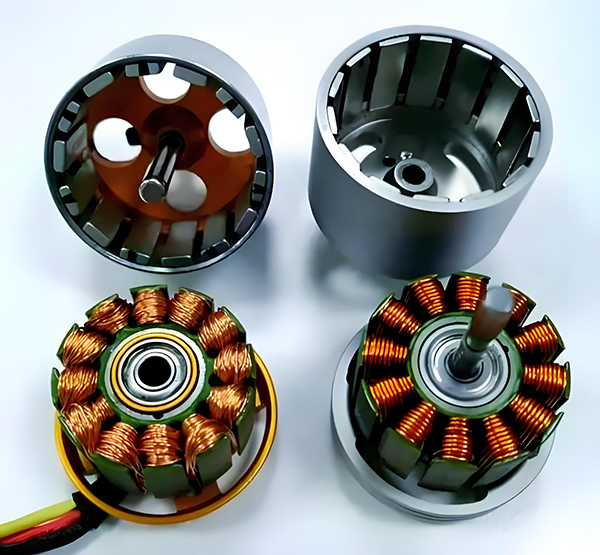
Brushless DC (BLDC) motors are widely used in EVs, drones, industrial machinery, and robotics for their efficiency and long lifespan. Unlike brushed motors—where reversing direction only requires swapping power leads—BLDC motors rely on electronic commutation, making direction reversal more nuanced.
How to Reverse Direction in Brushless Motors

Brushed and brushless DC motors are two of the most common electric motor designs, powering everything from toys to electric vehicles. While both convert electrical energy to mechanical motion, their internal structures, performance, and use cases differ drastically.
What’s the Difference Between a Brushed and Brushless Motor
Brushed DC motors are reliable, but wear and tear over time can lead to failure. Whether you’re troubleshooting a power tool, household appliance, or industrial conveyor motor, knowing the signs of a bad brushed motor saves time and prevents further damage.
How to Know If a Brushed Motor Is Bad
